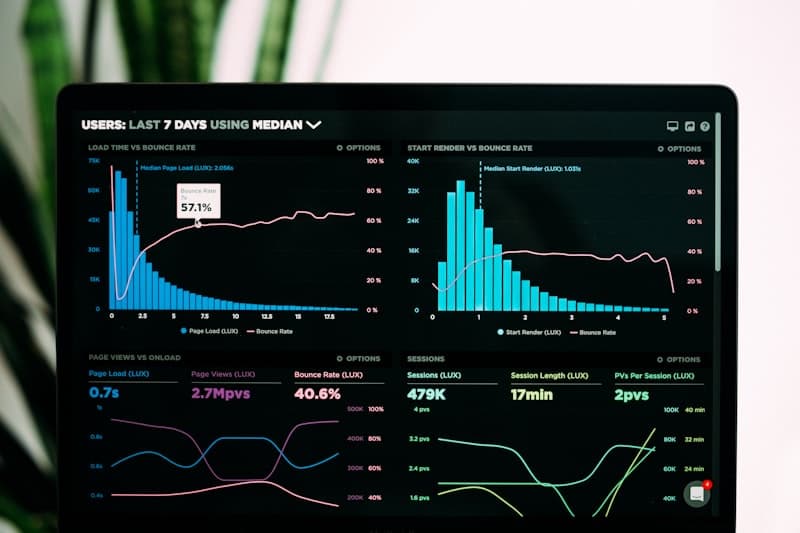
Power BI can display IoT sensor data with sub-60-second latency using Azure IoT Hub and Azure Stream Analytics — without any custom backend development. This architecture is the standard approach for industrial IoT monitoring, factory floor visibility, and equipment health tracking in Indian manufacturing plants.
This guide covers the complete architecture, step-by-step configuration, and the specific design decisions that determine whether your real-time IoT dashboard is reliable at scale.
Why Real-Time Matters in Industrial IoT
For standard business reporting — sales dashboards, financial summaries, inventory analysis — a 15-minute or hourly data refresh is perfectly adequate. For industrial IoT monitoring, however, the value of data degrades rapidly with time:
- A machine temperature spike detected 45 seconds after the event can prevent a bearing failure. The same spike detected 30 minutes later means the machine is already down.
- A compliance parameter breach that triggers an automated halt within 60 seconds avoids a quality rejection. The same breach detected at the next scheduled report run means product has already shipped.
- Real-time OEE data on a shop floor LED screen gives floor supervisors an instant signal to investigate — versus a 30-minute-delayed dashboard that reflects history, not the present.
Architecture Overview
The recommended architecture for Power BI real-time IoT monitoring:
- IoT Sensors / PLCs / SCADA → send telemetry data as JSON messages
- Azure IoT Hub → receives, authenticates, and routes device messages (up to millions of messages per day)
- Azure Stream Analytics → processes the stream in real-time: filtering, aggregation, windowing, anomaly detection
- Power BI Streaming Dataset → receives processed data from Stream Analytics via a REST endpoint
- Power BI Real-Time Dashboard → tile-based dashboard that auto-refreshes as new data arrives
- Power Automate → optional: trigger Teams/email alerts when Stream Analytics detects threshold breaches
Step 1: Set Up Azure IoT Hub
Azure IoT Hub is the cloud gateway that receives messages from your IoT devices. Each device is registered with a unique device identity and authentication key, ensuring only authorised devices can send data.
For an Indian manufacturing deployment monitoring 47 sensors at a production plant in Pune, an IoT Hub S1 tier (400,000 messages/day) is sufficient. S1 costs approximately ₹1,100/month in the India West region.
Device configuration: Each SCADA-connected sensor or PLC sends a JSON telemetry message every 30–60 seconds containing: deviceId, timestamp, parameterName, value, unit, and status.
Step 2: Configure Azure Stream Analytics
Stream Analytics is a fully managed, serverless stream processing engine. It takes IoT Hub as input, processes the stream with SQL-like queries, and sends output to Power BI Streaming Datasets.
Basic Stream Analytics Query
-- Pass all sensor readings to Power BI
SELECT
    deviceId,
    parameterName,
    value,
    unit,
    status,
    System.Timestamp AS EventTime
INTO [PowerBIOutput]
FROM [IoTHubInput]

-- Tumbling window: average sensor values every 30 seconds
SELECT
    deviceId,
    parameterName,
    AVG(CAST(value AS float)) AS AvgValue,
    MIN(CAST(value AS float)) AS MinValue,
    MAX(CAST(value AS float)) AS MaxValue,
    System.Timestamp AS WindowEnd
INTO [PowerBIAggregated]
FROM [IoTHubInput]
GROUP BY
    deviceId,
    parameterName,
    TumblingWindow(second, 30)
Threshold Alert Query
-- Detect values that exceed thresholds
SELECT
    deviceId,
    parameterName,
    value,
    'THRESHOLD_BREACH' AS AlertType,
    System.Timestamp AS AlertTime
INTO [AlertsOutput]
FROM [IoTHubInput]
WHERE
    (parameterName = 'Temperature' AND CAST(value AS float) > 85)
    OR (parameterName = 'Vibration' AND CAST(value AS float) > 12)
    OR (parameterName = 'Pressure' AND CAST(value AS float) < 2.5)
Step 3: Create the Power BI Streaming Dataset
In Power BI Service, create a Streaming Dataset with the schema that matches your Stream Analytics output. Power BI generates a REST API endpoint that Stream Analytics writes to. The schema must exactly match the field names and data types in your Stream Analytics output query.
Enable Historic Data Analysis on the streaming dataset — this creates a backing dataset that stores all streaming data, allowing you to build standard Power BI reports on top of the real-time stream for trend analysis and historical review.
Step 4: Build the Real-Time Dashboard
Power BI real-time dashboards use tile-based layouts (not the full report canvas). Supported real-time tile types include:
- Card: Current value of a single sensor — ideal for temperature, pressure, OEE score
- Line chart: Last N minutes of a sensor reading — shows real-time trend
- Gauge: Value within a min/max range — ideal for fill levels, pressure within tolerance bands
- Clustered bar: Current values across multiple sensors side by side
Design for the shop floor: use large text, high-contrast colours (white on dark navy, green/amber/red status indicators), and minimal clutter. At 55-inch viewing distance of 3–5 metres, font sizes below 24px are unreadable.
Step 5: Power Automate Alerts
Configure Power Automate to trigger when Stream Analytics sends a threshold breach to the Alerts output:
- Create a Power Automate flow triggered by "When a data alert is triggered" in Power BI
- Set alert conditions on the streaming dataset tiles (e.g., Temperature Card > 85°C)
- Action: Send a Microsoft Teams message to the Maintenance channel with device ID, parameter name, current value, and timestamp
- Action: Send an email to the Plant Manager and Maintenance Supervisor
This converts the dashboard from a passive display into an active operational response system. In CodePlateau's implementation for an industrial lighting manufacturer in Pune, this alert architecture achieved zero compliance failures in six months post-launch.
Latency Benchmarks
- Sensor to IoT Hub: Near-instant (device-dependent, typically <1 second)
- IoT Hub to Stream Analytics: <5 seconds for standard tier
- Stream Analytics to Power BI: 5–30 seconds (varies with message volume)
- Power BI tile refresh: Tiles refresh as new data arrives, typically every 15–30 seconds
- End-to-end (sensor to dashboard): Typically 20–60 seconds
Cost Estimation for a 50-Sensor Plant (India)
- Azure IoT Hub S1: ~₹1,100/month
- Azure Stream Analytics (1 Streaming Unit): ~₹5,500/month
- Power BI Pro for dashboard users: ₹715/user/month
- Power BI Premium/Fabric (optional, for shop floor LED displays with unlimited viewers): ~₹68,000–2.7 lakhs/month depending on capacity
For a 50-sensor plant with 5 Power BI Pro users, the Azure running cost is approximately ₹6,600/month — a trivial investment compared to the value of prevented equipment failures.
On-Premise Option: Power BI Gateway with Direct Query
If cloud connectivity is not permitted (common in defence, government, and some financial sector plants), a Power BI Gateway with Direct Query to an on-premise SCADA historian provides near-real-time capability (15-minute minimum refresh, no true streaming). This is not suitable for <60-second latency requirements but adequately serves most shift-level monitoring use cases.