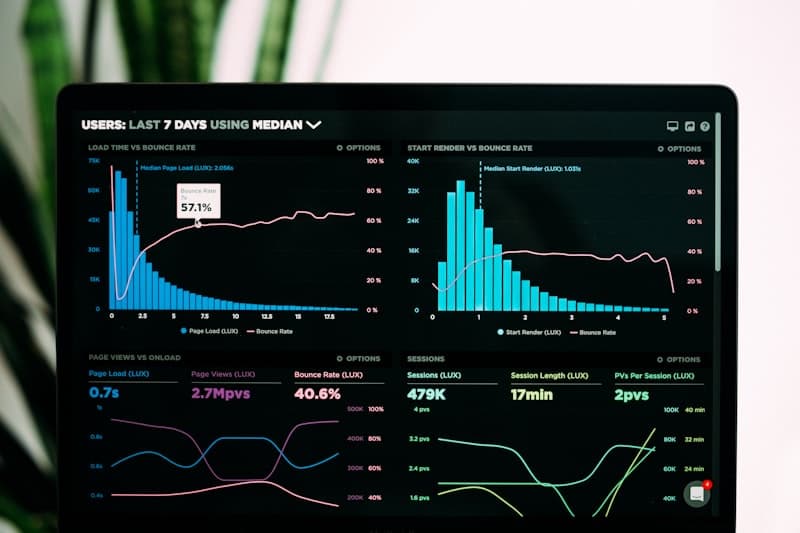
Overall Equipment Effectiveness (OEE) is manufacturing's gold-standard KPI — a single number that tells you exactly how effectively your production equipment is being used. A real-time OEE dashboard in Power BI connected to your SCADA and MES systems gives plant managers instant visibility into availability, performance, and quality losses across every shift, line, and machine.
This guide walks you through building a production-grade OEE dashboard in Power BI — covering data sources, the star-schema data model, essential DAX measures, and the visual design pattern we use in our implementations for Indian automotive and industrial manufacturers.
What Is OEE and Why Does It Matter?
OEE stands for Overall Equipment Effectiveness. It is the product of three factors:
OEE = Availability × Performance × Quality
- Availability — percentage of scheduled production time the equipment was actually running (measures downtime losses)
- Performance — how fast the equipment ran compared to its theoretical maximum speed (measures speed losses)
- Quality — percentage of output that met quality standards on the first pass (measures defect losses)
World-class OEE is 85%. Most Indian manufacturers start between 45% and 65%. Every 1% improvement in OEE at a large manufacturing plant can translate to ₹25–₹80 lakhs in additional annual output value, depending on product margin and production volume — without any additional capital investment in equipment.
Data Sources for a Power BI OEE Dashboard
Before writing a single DAX measure, you need reliable data. Here are the typical sources:
SCADA Systems
SCADA systems capture machine-level timestamps for start, stop, and fault events. Common SCADA platforms in Indian manufacturing include Siemens WinCC, Rockwell FactoryTalk, Wonderware InTouch, and Honeywell Experion. Power BI connects to these via their underlying SQL Server historian databases, OPC-UA connectors, or Azure IoT Hub as a bridge for real-time streaming.
MES (Manufacturing Execution Systems)
MES platforms like SAP ME, Siemens Opcenter, or custom-built systems track production orders, planned vs. actual cycle counts, and quality inspection results. The MES is your primary source for planned production time and good unit counts — both essential for OEE calculation.
ERP Systems
SAP ECC/S4HANA or Oracle ERP provides the production schedule — the denominator for availability calculations — and product master data like ideal cycle times per part number.
Manual Entry via Microsoft Forms + SharePoint
For plants without fully digitised SCADA systems (common in mid-market Indian manufacturing), Microsoft Forms connected to SharePoint Lists provides a practical, low-cost data entry mechanism. Power BI reads directly from SharePoint. This approach gets a basic OEE dashboard live in under two weeks and is a proven starting point before investing in full SCADA integration.
Building the Star Schema Data Model
A well-structured star schema is the foundation of fast, accurate OEE calculations in Power BI.
Fact Table: Production Events
Each row represents one production event. Columns: MachineID, ShiftID, DateKey, StartTime, EndTime, EventType (Running / Planned Downtime / Unplanned Downtime / Quality Stop), GoodUnits, TotalUnits, DowntimeReasonID.
Dimension Tables
- DimMachine: MachineID, MachineName, Line, Department, Plant, IdealCycleTimeSeconds
- DimShift: ShiftID, ShiftName, PlannedMinutes, ShiftStartTime, ShiftEndTime
- DimDate: Standard date table with Year, Month, WeekNumber, Quarter, DayOfWeek, IsWorkingDay
- DimDowntimeReason: ReasonID, ReasonDescription, ReasonCategory (Planned / Mechanical / Electrical / Changeover / Quality)
Core DAX Measures for OEE
Here are the production-ready DAX measures for a complete OEE calculation:
Planned Production Time
Planned Production Time (min) =
SUMX (
    RELATEDTABLE ( DimShift ),
    DimShift[PlannedMinutes]
)
Actual Run Time
Actual Run Time (min) =
CALCULATE (
    SUMX (
        FactProduction,
        DATEDIFF ( FactProduction[StartTime], FactProduction[EndTime], MINUTE )
    ),
    FactProduction[EventType] = "Running"
)
Availability Rate
Availability =
DIVIDE (
    [Actual Run Time (min)],
    [Planned Production Time (min)],
    0
)
Performance Rate
Performance =
DIVIDE (
    SUMX (
        FactProduction,
        FactProduction[TotalUnits] * RELATED ( DimMachine[IdealCycleTimeSeconds] ) / 60
    ),
    [Actual Run Time (min)],
    0
)
Quality Rate
Quality =
DIVIDE (
    SUM ( FactProduction[GoodUnits] ),
    SUM ( FactProduction[TotalUnits] ),
    0
)
OEE (Overall)
OEE =
[Availability] * [Performance] * [Quality]
OEE vs Target (for conditional formatting)
OEE Status =
VAR OEEValue = [OEE]
RETURN
    SWITCH (
        TRUE (),
        OEEValue >= 0.85, "World Class",
        OEEValue >= 0.70, "On Track",
        OEEValue >= 0.50, "Below Target",
        "Critical"
    )
Dashboard Layout and Visual Design
A manufacturing OEE dashboard must be readable both on a 24-inch control room monitor and a 55-inch LED screen on the shop floor. Here is the design pattern we use:
Top KPI Strip
Display Availability, Performance, Quality, and overall OEE as large KPI cards with a traffic-light colour scheme — green (≥85%), amber (70–84%), red (<70%). This lets a floor supervisor assess shift health in under three seconds.
30-Day OEE Trend
A line chart showing daily OEE over the past 30 days with a horizontal reference line at 85% (world-class target). Include shift-level annotations for significant downtime events. This chart is your leading indicator — a declining trend tells you to act before it becomes a crisis.
Downtime Pareto Chart
A horizontal bar chart ranking downtime reasons by total lost minutes with a cumulative percentage line. The top three downtime causes typically account for 70–80% of all downtime losses. Address these first to achieve the fastest OEE improvement per effort invested.
Machine-Level Heat Map
A matrix visual showing OEE by machine (rows) and by day or shift (columns), with conditional formatting to instantly surface underperforming assets. Plant managers can drill through from this view to the specific production events causing the loss.
Real-Time vs Scheduled Refresh
Two approaches exist for Power BI OEE dashboard data refresh:
- Scheduled Refresh (every 15–30 minutes): Connects to on-premise SCADA/MES databases via Power BI Gateway. Suitable for most OEE use cases. Easy to implement and maintain.
- Real-Time Streaming (sub-60 seconds): Azure IoT Hub → Azure Stream Analytics → Power BI Streaming Dataset. Required for live production control rooms where instant machine alerts matter.
For most Indian manufacturing plants, a 15-minute scheduled refresh provides sufficient operational visibility while being far simpler to implement. Start here, then upgrade to streaming if real-time alerting becomes a requirement.
Power Automate Alerts for Threshold Breaches
Configure Power Automate to trigger when OEE drops below a threshold — for example, if any machine's OEE falls below 70% for two consecutive refresh cycles, automatically send a Teams message to the plant manager and maintenance lead with: machine name, current OEE breakdown, and top downtime reason. This proactive alerting converts the dashboard from a reporting tool into an operational response system.
Implementation Timeline and Results
A Power BI OEE dashboard implementation typically follows this phased timeline:
- Week 1–2: Data discovery, SCADA/MES connection setup, data model design
- Week 3–4: Core OEE measures development, data validation against manual records
- Week 5–6: Dashboard design, drill-down navigation, shift and machine views
- Week 7–8: Power Automate alerts, LED screen deployment, user training
In CodePlateau's implementation for an auto component manufacturer in Pune, the project was completed in 8 weeks. Within 60 days of go-live: reporting time dropped 80% (from 3 days of manual Excel consolidation to 4 hours), unplanned machine downtime fell 62%, and prevented breakdowns delivered ₹1.2 crore in annual savings.